Use the Organization screen to define the district structure within
Synergy SIS. Verify that district and schools contain the correct California
District School (CDS) code.
Navigate to Synergy SIS>System>Setup>Organization screen.
Click on name of the district organization. Detail view
displays on right.
On the District tab
Verify the Organization
Name.
Verify the five-digit District
Number portion of the CDS number is entered correctly,
(xxDDDDDxxxxxxx) where
D equals the District Number of the CDS code.
Verify the two-digit County
Code portion of the CDS number is entered correctly, (CCxxxxxxxxxxxx) where C equals
the County Number of the CDS code.
Click to left
of district organization name. District school levels display
below.
Click to left
of appropriate grade level for desired school. Schools display
below level.
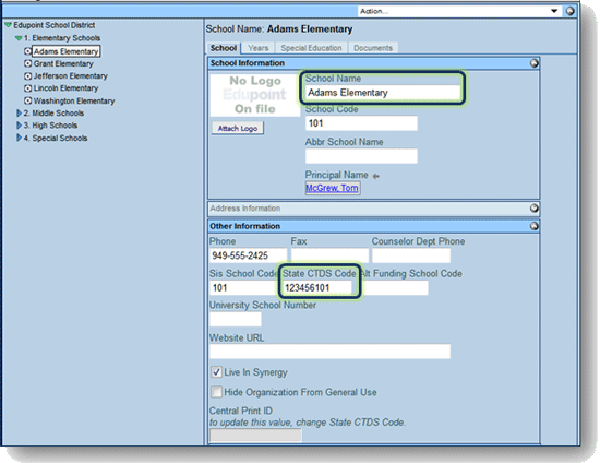
Click on name of desired school. Detail view displays on
right.
On the School tab
Verify the School Name.
Locate the State CTDS
Code.
Verify the seven-digit school code portion of the CDS number
is entered correctly, (xxxxxxxSSSSSSS)
where S equals the School Code number of the CDS code.
Click to
left of district organization name. District school levels display
below.
Click to
left of appropriate grade level for desired school. Schools display
below level.
Click on name of desired school. Detail view displays on
right.
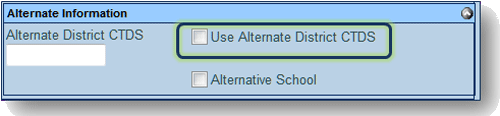
Under Alternate Information
Check Use Alternate District
CTDS if the school is an alternative education school.
Click .
NOTE: The school will be
required to enter a Receiver School value when exiting students with
a T160 exit reason. Only set this option for alternative schools.
The option to hide a school from general use by removing it from
the chooser selection is selected on the Organization Setup screen.
Use this option for schools that are closed so that they do not show
on the chooser list.
Click to
left of district organization name. District school levels display
below.
Click to
left of appropriate grade level for desired school. Schools display
below level.
Click on name of desired school. Detail view displays on
right.
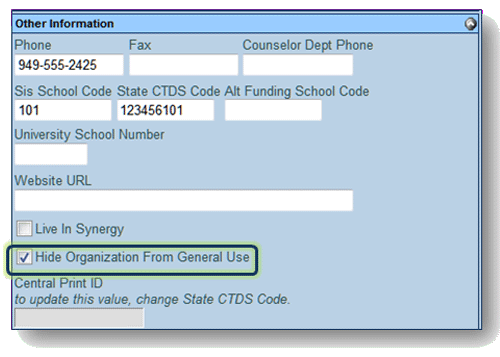
Under Other Information
Check Hide Organization
from General Use.
Click .
NOTE: Selecting Hide Organization From General Use
hides schools that are no longer in use. Remember to deselectLive In Synergy SIS for schools
that are no longer in use.

 Organization
- District
Organization
- District after any changes.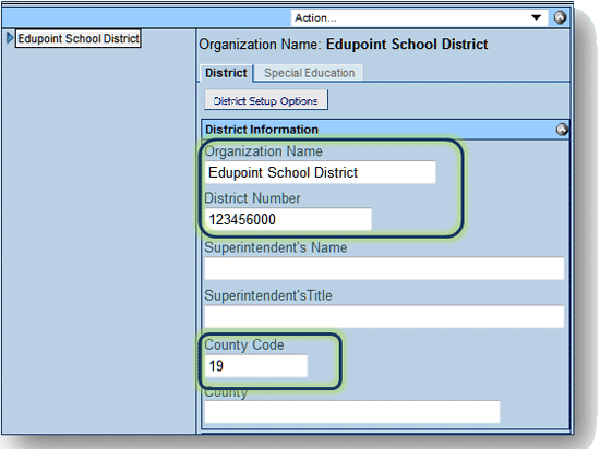
 to left
of district organization name. District school levels display
below.
to left
of district organization name. District school levels display
below.