The Class Website Post allows teacher to create a custom class website
topics for posting announcements, homework assignments, and uploaded documents
that are viewable in ParentVUE and StudentVUE. Homework assignments are
generated from both these posts and from ungraded assignments.
Select Grade Book, Class
Website Post. The Class Websites screen opens.
Add a new post by selecting from the Topics
column. The choices are Announcements,
Homework, or Classroom
Documents.
Once selected, the detail view displays.
Click . The Teacher Class Website Entry
screen displays. The topic selected displays in Topic field.
Enter a name for this topic in Headline.
Enter the content of the Announcement or Homework in the
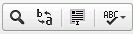
body of the HTML editor screen and format as desired. View the
HTML
Editor Option Descriptions on this help page below, for
a description of the editor options.
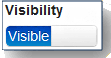
Select whether to have this topic viewable in the ParentVUE
and StudentVUE portal. By default the topic is Visible.
Click on the word to slide it to Hidden.
Apply this topic to other classes by checking the additional
boxes.
Upload documents for any topic by clicking Upload
New Document and browsing to the document location.
Inserts a printing page break. Only impacts printed version.
Styles & formatting determine the appearance and semantic
value of your document. You may use the drop down boxes to apply
styles, set the font, its size, etc. To remove the applied style
select the style name again.
Changes the color of the text. See Size and color in Text
Formatting.
Changes the background color of the text. See Size and
color in Text Formatting.
Maximizes the editor size inside the browser.
Shows where the block elements boundaries in the text.
 Create
Class Website Topic
Create
Class Website Topic
 . The Teacher Class Website Entry
screen displays. The topic selected displays in Topic field.
. The Teacher Class Website Entry
screen displays. The topic selected displays in Topic field.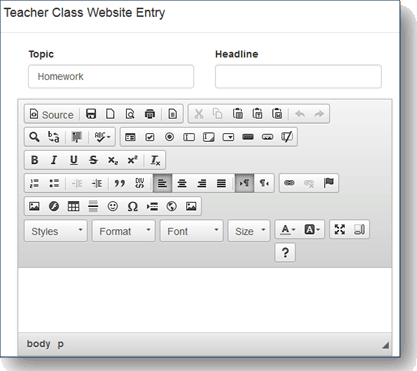
 when finished.